
"Bruce, I can't write a single line of code, but I need to get my business online fast. Is Wix really as magical as the ads make it sound?"
That's one of the questions I get asked most these days, so I figured it was time to write the honest, no-hype answer.
A quick bit of context on why I care so much about this. Back in 2020, I paid a freelancer several thousand dollars to build me a "professional" website. The problem? It was built on outdated optimization techniques. The moment Google rolled out a core algorithm update, my rankings collapsed, the site basically vanished from search, and by the time I added up the lost traffic and lost sales, the whole disaster cost me well over a hundred thousand dollars. After that gut punch, I made a decision: instead of handing money to people who don't have skin in the game, I'd teach people how to pick the right tools and spend smart so they can do it themselves.
This review is written in exactly that spirit. Let's get into it.
What Is Wix, and Who Is It For?
Wix is an all-in-one website builder. That means hosting, your domain, an SSL certificate, the editor, support, and payment processing all live in one dashboard. You don't touch a server, you don't manage a database, and you never wrestle with plugin conflicts. Wix handles all of that behind the scenes so you can focus on the actual website.
In my experience, Wix is a great fit for three kinds of people:
- Total beginners with zero technical background. You never need to understand FTP, DNS records, or how a web server works. If those acronyms mean nothing to you, that's perfectly fine here.
- Small businesses or individuals who need to launch quickly. A coffee shop, a handmade-soap brand, a photography portfolio — you can realistically get something live over a single weekend.
- Budget-conscious DIYers. Building it yourself can save you the thousands of dollars a developer would charge, which is exactly the route I wish I'd taken in 2020.
Quick take: If you want a clean, professional site fast and you're not planning to obsess over search rankings, Wix is hard to beat for sheer convenience. If you're building a long-term, SEO-driven business, keep reading — there are some real trade-offs I want you to understand first.
Wix Pricing: Free Plan Limits vs. the 2026 Paid Tiers
What the Free Plan Can and Can't Do
Wix does have a genuinely free plan, and it's useful — just know its boundaries going in.
What you get on the free plan:
- 500MB of storage
- 1GB of bandwidth per month
- The full website-building editor (you can design a complete site)
What you don't get:
- You can't connect your own custom domain. Your address stays locked as yourname.wixsite.com/xxx.
- You can't remove Wix's own ads from your site.
- Ecommerce features are off the table.
Honestly, I treat the free plan as a sandbox: a place to practice, test layouts, and confirm you actually enjoy using Wix before you spend a cent.
The 2026 Paid Plans at a Glance
All prices below are the discounted annual rates in USD. Paying month-to-month costs noticeably more — for example, Light runs closer to ~$24/month and Core closer to ~$36/month when billed monthly. Committing annually typically saves you 20%–30%.
| Plan | Price (billed annually) | Storage | Best for |
|---|---|---|---|
| Light | ~$17/month | 2GB | Individuals, portfolios, brochure sites |
| Core | ~$29/month | 50GB | Small online stores starting to sell |
| Business | ~$39/month | 100GB | Growing brands, full ecommerce |
| Business Elite | ~$159/month | Unlimited | Large, high-traffic businesses |
A couple of details that are easy to miss:
- The Core plan is the cheapest tier that unlocks ecommerce, so if you plan to sell, that's your real starting point — not Light.
- Payment processing fees stack on top of your plan. Through Wix Payments you're looking at roughly 2.9% + $0.30 per transaction, and through PayPal it's around 3.49% + $0.49 per transaction. Subscription-based products can carry an extra percentage on top of that.
Signing Up and Building Your Site: Two Paths
Once you're in, Wix gives you two ways to build. Pick based on how hands-on you want to be.
Path 1: AI Generation (Fastest, for the Time-Strapped)
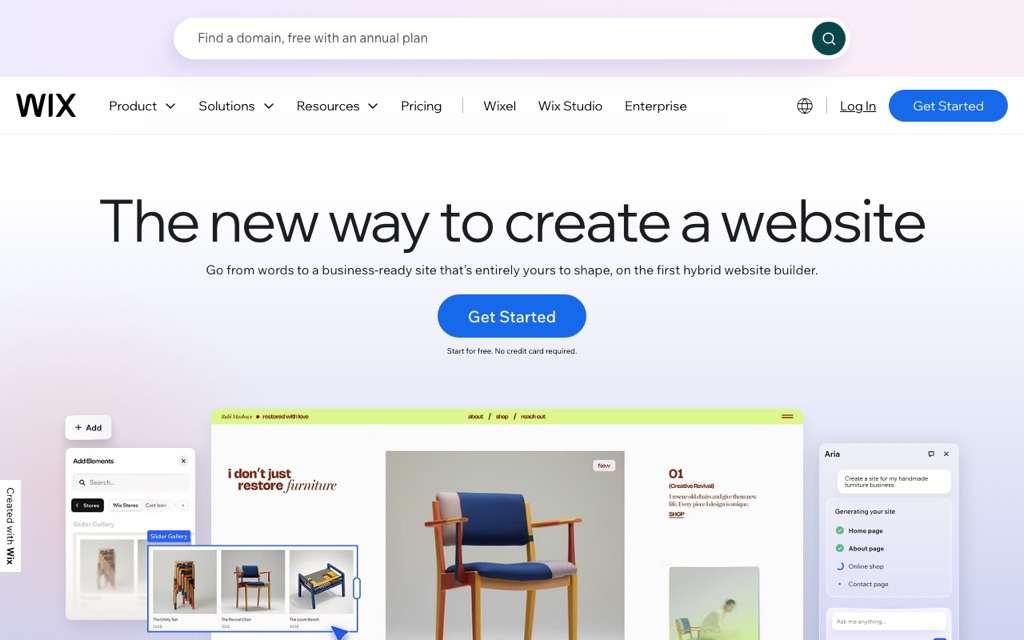
The old Wix ADI builder was retired in November 2024 and replaced by the new Wix AI Website Builder, with an assistant called Aria. Here's how the flow works:
- You describe your business in plain language — something like "an independent coffee shop in Austin, warm and handcrafted vibe."
- The AI asks a few clarifying questions about your industry, your style, and which pages you want.
- It auto-generates a multi-page draft, complete with copy and a color scheme.
- You fine-tune everything in the standard editor afterward.
The upside is speed. You can go from a blank slate to a presentable website in maybe ten minutes. The downside is that AI-generated designs tend to look a little similar to one another, so you'll want to add your own personality before publishing.
Path 2: Choosing a Template (More Control, for People With a Vision)
If you have a clear idea of how you want things to look, start from a template instead. Wix offers 2,000+ free templates, organized by industry — restaurants, ecommerce, photography, blogs, and so on. You edit everything with a drag-and-drop editor, and the mobile version adapts automatically.
Important warning: Once you've chosen a template and published your site, you cannot swap to a different template later. Wanting a new look means rebuilding the entire site from scratch. Choose carefully the first time.
My recommendation for first-timers: start with a template rather than the AI builder. The spacing, the responsive behavior, and the layout are already professionally dialed in, so you get a polished result with far less fiddling.
The Pros: Why So Many Beginners Pick Wix
I'm critical of Wix in places, but credit where it's due — there are real reasons it's so popular:
- No technical knowledge required. You never touch hosting, databases, or plugin conflicts. Wix wraps up all the messy parts for you.
- A huge template library. Over 2,000 designer-quality templates, all of which adapt to mobile automatically. It's genuinely hard to build an ugly site here.
- An intuitive drag-and-drop editor. Want a button moved three pixels to the left? Drag it. What you see is what you get, with no guesswork.
- Truly all-in-one. Your domain, SSL certificate, hosting, support, and payment integrations all live in a single dashboard. No juggling five separate services.
- A polished, beginner-friendly interface. From the editor to the back-end dashboard to the help docs, everything is clean and approachable, so there's almost no learning curve.
The Cons: A Few Things I Have to Be Honest About
This is the part most reviews gloss over. I won't, because these trade-offs are exactly the kind of thing that burned me in 2020.
Con 1: The SEO Ceiling Is Lower
To be fair, in 2026 Wix covers the SEO basics: meta titles, meta descriptions, Open Graph tags, and an auto-generated sitemap are all there. For a small site, that's enough.
But compared with WordPress, the ceiling is lower:
- Page-speed optimization is weaker.
- You get limited control over URLs and canonical tags.
- Running content at large scale is harder.
- Accumulated templates and apps can bloat your load times.
- That bloat drags down your Core Web Vitals scores, which Google cares about.
If your business lives and dies by search traffic, take this one seriously. This is precisely the area where my old site fell apart.
Con 2: Portability Is Terrible — Moving Means Rebuilding
This is the single biggest pain point, no contest. Wix offers no standard way to migrate your site out and no viable export of your full website. If you ever want to leave, you'll be rebuilding manually — page by page, post by post. Every image has to be re-uploaded, every SEO setting recreated. And the bigger your site grows, the tighter the platform locks you in.
This is uncomfortably close to my own painful lesson: when you hand your business's lifeline to someone else's platform, you only discover you can't leave at the exact moment you need to.
Con 3: Long-Term Costs and Feature Limits
- The free version carries ads and won't let you use a custom domain.
- You'll need at least the Light plan (~$17/month) for basic real-world use.
- You'll need at least the Core plan (~$29/month) just to sell anything.
- Payment processing fees keep compounding on top of those costs.
- If Wix doesn't offer a feature, you simply can't add it — you're at the mercy of the official roadmap, with nothing like WordPress's enormous plugin ecosystem to fill the gaps.
The bottom line: Wix trades your freedom for convenience. Short-term, it's wonderfully easy. Long-term, your SEO ceiling, your ability to move, and your customization are all tied to one platform.
Payments and Going Global: What to Watch
If you're selling to an international audience, payments are where the hidden details hide. The good news is that the major rails work cleanly with Wix — credit cards, PayPal, and Stripe are all broadly supported, so accepting cross-border payments is fairly straightforward.
What catches people off guard is the layered fees. On top of the standard processing rate, cross-border transactions often add a surcharge of roughly 1.5%, and multi-currency conversion can stack another ~1% on top of that. None of these are deal-breakers, but if you're selling worldwide, build them into your margins from day one rather than discovering them in your monthly statement.
One more thing: if your market has specific local payment habits or tax-invoicing requirements that Wix doesn't natively support, you'll likely need a third-party integration to bridge the gap — which is an added cost to factor into your ecommerce plan.
Wix vs. WordPress vs. Webnode: How to Choose
| Criteria | Wix | WordPress | Webnode |
|---|---|---|---|
| Ease of use | Easiest | Moderate (learning curve) | Easy |
| SEO ceiling | Medium | Highest (powerful plugins) | Medium |
| Portability / migration | Poor — hard to move out | Best — fully self-owned | Average |
| Customization | Limited to the platform | Virtually unlimited | Limited to the platform |
| Best for | Beginners, small shops | Scaling up, SEO-heavy | Multilingual, simple sites |
Here's the framework I'd use:
- Choose Wix if you're new to this, on a tight budget, need a fast launch for a brochure or small store, aren't planning to migrate anytime soon, and don't depend on search traffic for survival.
- Choose WordPress if you're playing the long game, you prioritize SEO traffic, you'll want deeper customization or migration down the road, and you're willing to invest some time learning. I walk through the whole process in my WordPress website tutorial.
- Choose Webnode if you need solid multilingual support, value simplicity, and want a leaner alternative to Wix. My full Webnode review goes deeper on that.
Conclusion: Is Wix Actually Worth It?
My honest verdict: for the right person, Wix is absolutely worth it. For the wrong person, it'll quietly tie your hands.
If you're the right fit, Wix's convenience, beautiful templates, and clean interface will save you a mountain of learning time and development costs. Start on the free plan, get a feel for it, and only upgrade once you're sure you like it. The risk is genuinely low.
If you're building a serious long-term operation where search traffic is the lifeblood and you'll eventually want full control, I'd steer you toward WordPress instead. Yes, there's a learning cost — but you own everything, and ownership is the thing I learned the hard way actually matters.
The real lesson from 2020 wasn't just "pick a better tool." It was this: don't only ask whether a tool is easy to use today. Ask whether you can walk away from it the day you decide to leave.